What’s newFor teachers
How to use AI drills and live quizzes in your lessons (teachers)
Video guide
Watch how it works, step by step, in the real app.
AI drills turn what you just practised into short fill-the-blank exercises, built from this very lesson, while your student is still with you. Live quizzes let you open one of your own quizzes in the room and watch the answers come in.
Where you find it
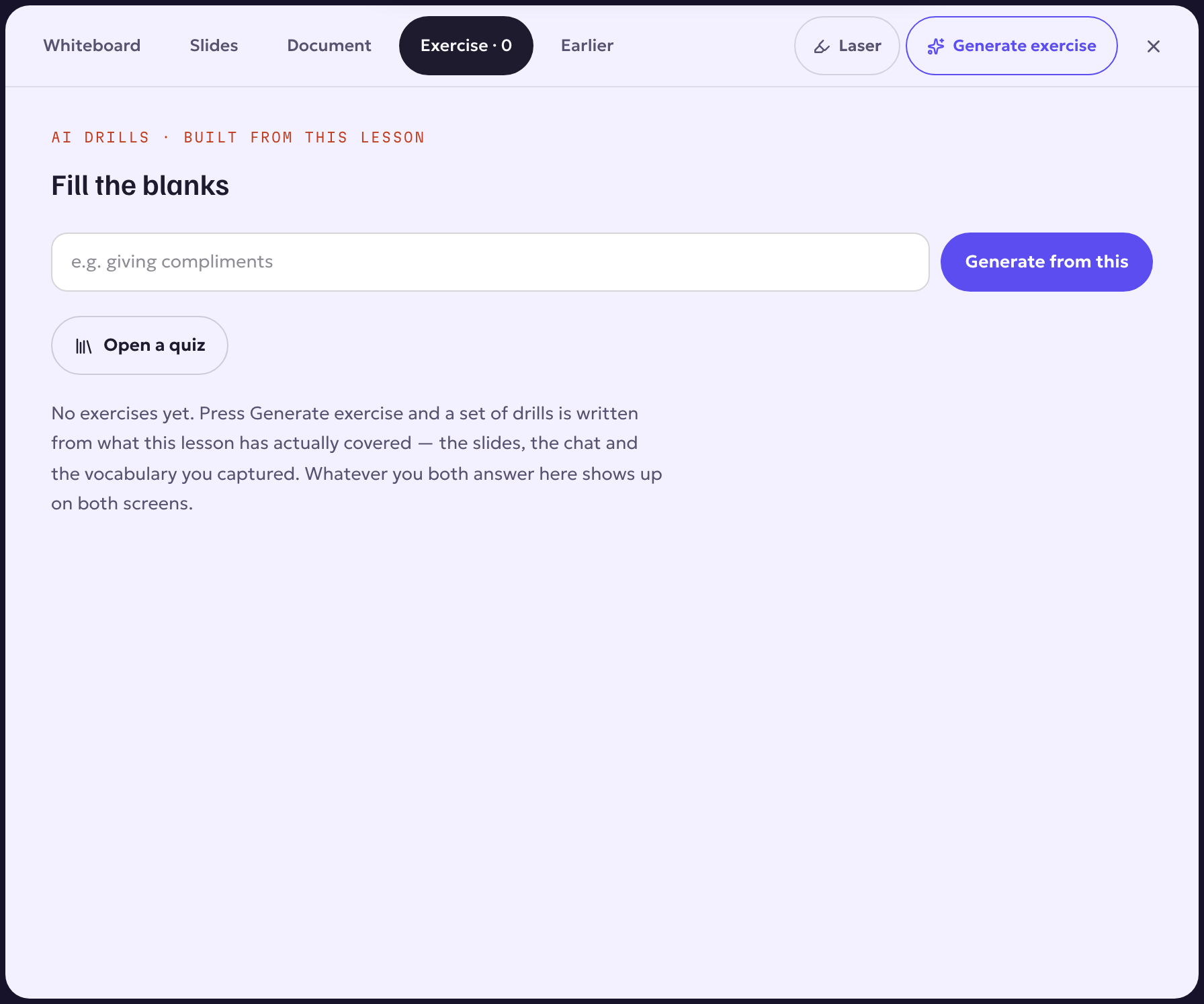
In the lesson room, open the Exercise tab on the stage. You can also press Generate exercise above the stage.
Making drills from this lesson
- In What did you practise in this lesson?, write the focus in a few words, for example ordering at a café: coffee with milk, the bill.
- Press Generate from this.
- The drills appear on both screens: up to five fill-the-blank sentences, each with a few choices. Your student answers on their own screen, and your students' first tries are saved.
The drills are built only from this lesson: its slides, the board, the chat, the words you captured and the focus you typed (and the lesson transcript, when both of you agreed to recording). There are no ready-made templates.
Not quite right? Generate again. Happy with them? Press Save as a quiz: they go to Materials › Quizzes, where you can edit every question and use the quiz again.
Opening a quiz live
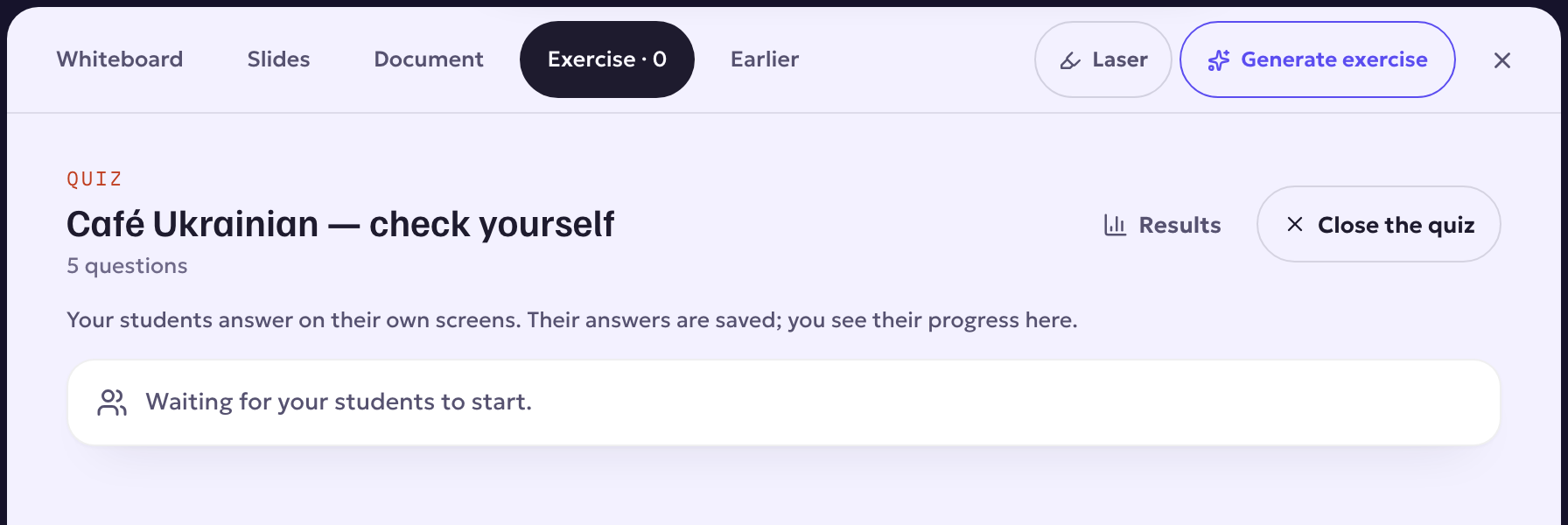
- In the Exercise tab, press Open a quiz and pick one of your quizzes.
- Your student answers on their own screen. Their answers are saved, you see their progress as they go, and Results shows how each question went.
- Press Close the quiz when you are done.
Good to know
- Only the teacher can generate drills or open a quiz.
- Try both in a practice lesson first: it is free and no real student sees it.