What’s newFor students
How to use your monthly report
The monthly report puts one month of your learning on one page: your lessons, your hours, your new words, your homework and your level. You can keep it for yourself, or download it as a PDF and share it with a parent, a teacher or an employer.
Where you find it
- Go to My learning → Past lessons and press Monthly report.
- On the 1st of each month you also get a notification and an email: "Your report is ready". Press it to open last month's report.
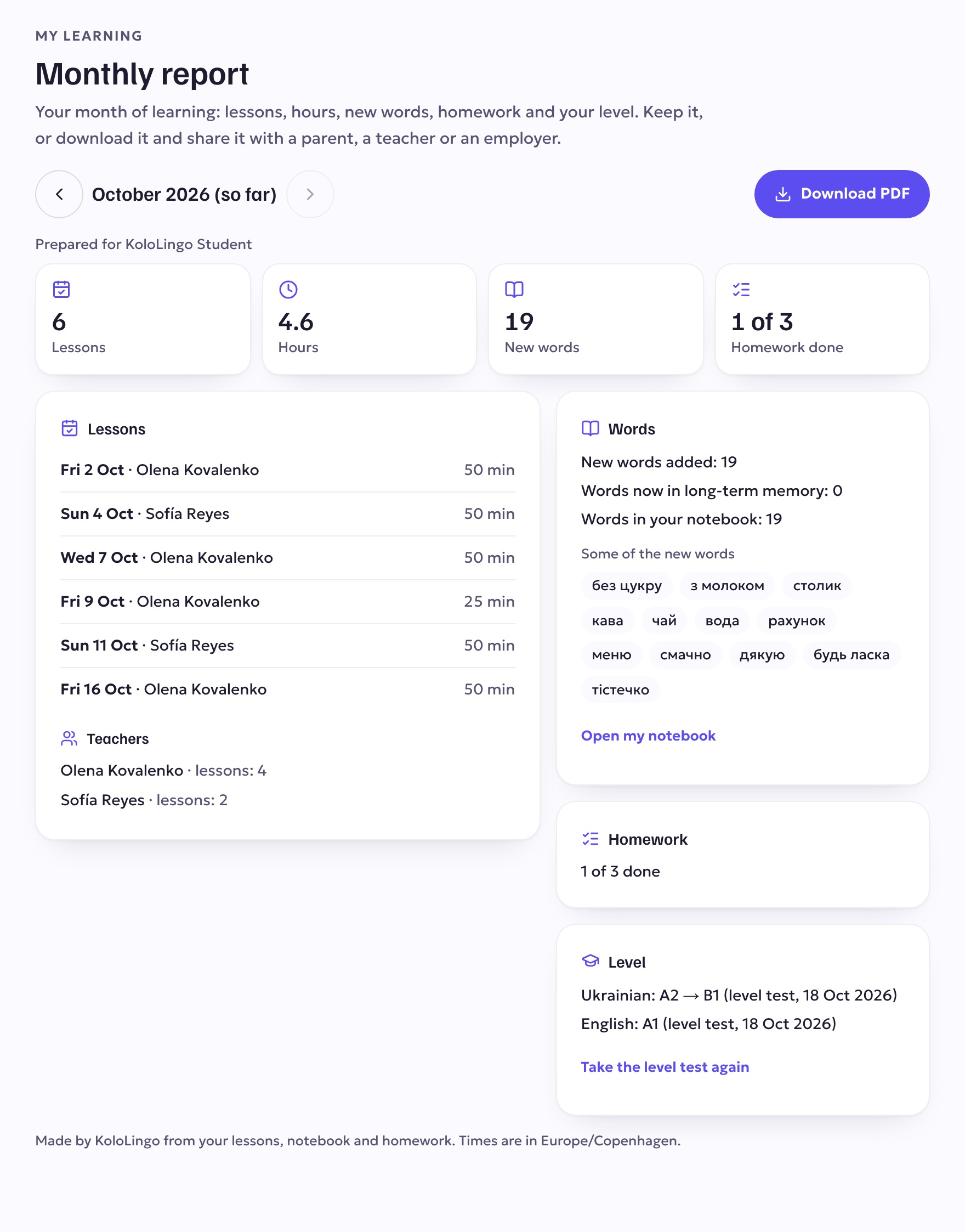
Use the arrows next to the month to go back to earlier months. The current month says (so far) and keeps filling in until the month ends.
What's in it
- Lessons and hours: every lesson you took that month, with the date, the teacher and how long it was. Missed lessons are not counted.
- Teachers: who you learned with, and how many lessons with each.
- Words: the new words you added to your Learning Notebook, the words that are now in your long-term memory, and how many words your notebook holds in total.
- Homework: how much of the homework set that month you finished.
- Level: your latest level test result for each language. If your level changed that month, you see it, for example A2 → B1.
All dates and times are in your own time zone.
Download or share it
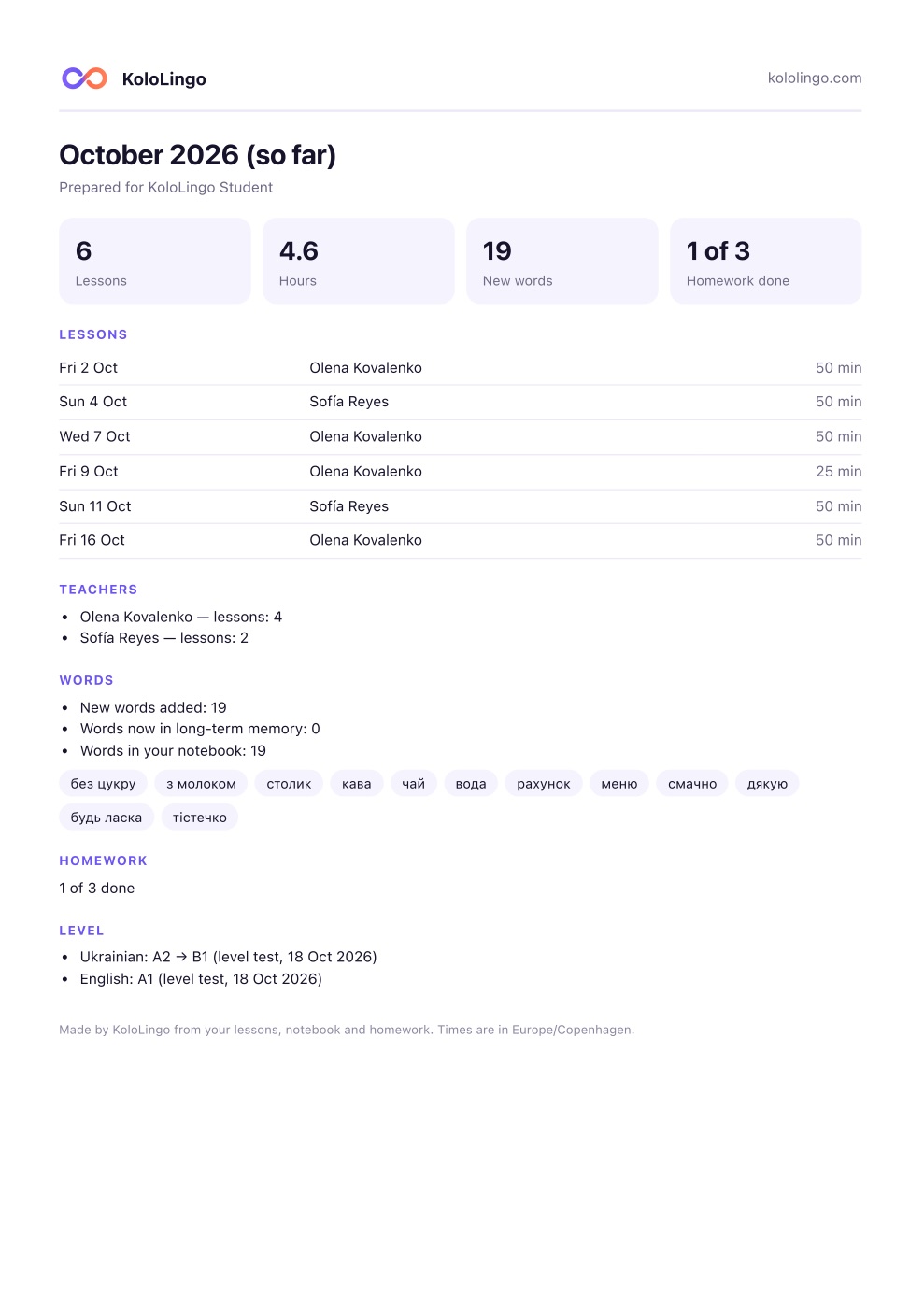
- Press Download PDF to save the report. The PDF is in your language and shows your name, so whoever you send it to knows whose report it is.
- On a phone or tablet you also see Share. It opens your device's share sheet, so you can send the PDF by message or email straight away.
Turning the emails off
The monthly note follows your Lessons notifications. You can switch its emails off in Account → Notifications. Your reports stay available in My learning either way.