What’s newFor teachers
How to offer voice reviews (teachers)
Voice reviews let your students get your feedback between lessons. A student you've taught records an answer to your question (or their own topic) and pays your price. You listen when it suits you and send back a voice note and written corrections. It's a good fit for busy students who can't always book a full lesson.
Where you find it
In the teacher menu, open More and choose Voice reviews. When a request is waiting, it also shows on your dashboard under Needs you.
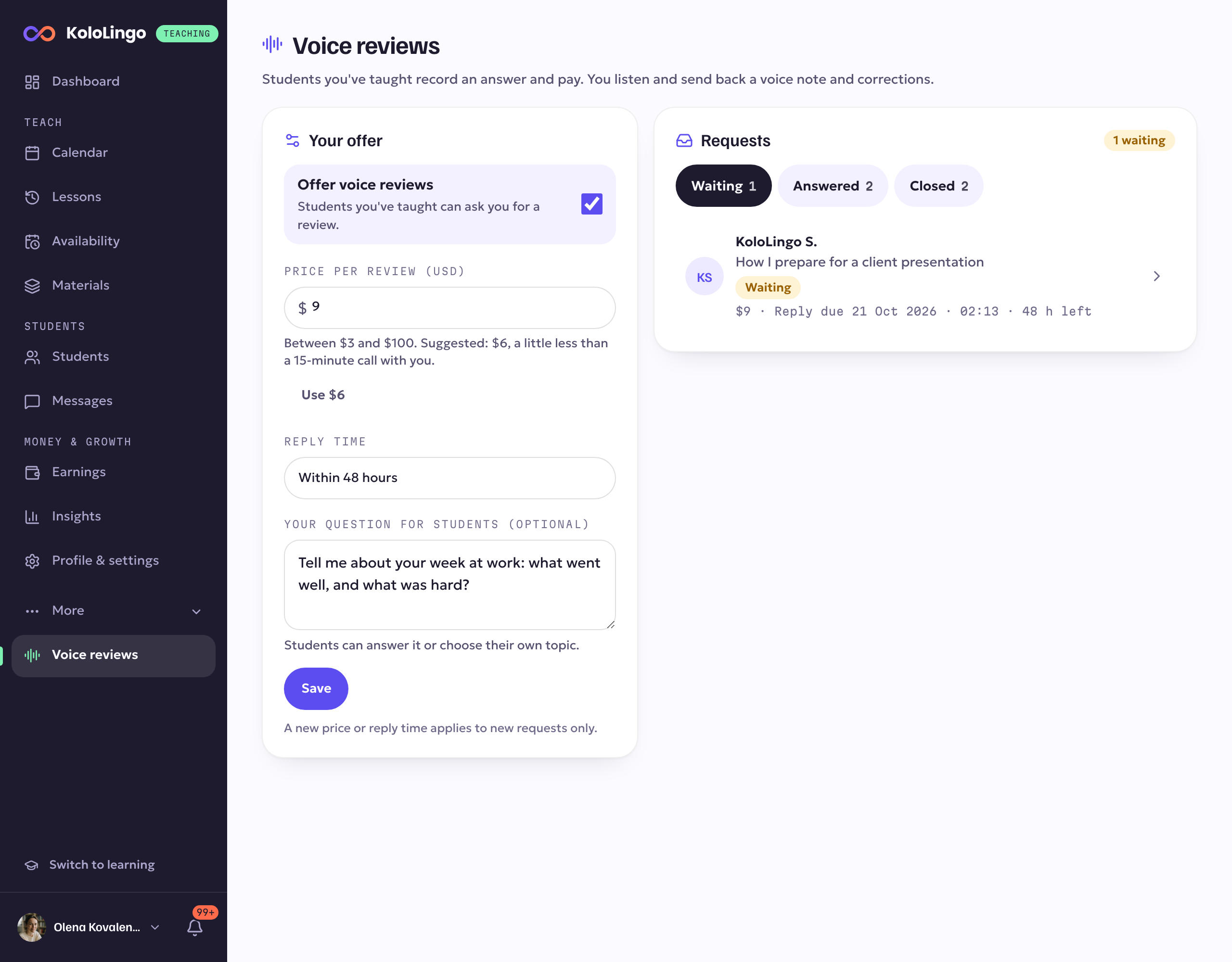
Switching voice reviews on
In Your offer:
- Switch on Offer voice reviews.
- Set your price per review (between $3 and $100). We suggest a price a little below a 15-minute call with you; press Use to take the suggestion.
- Choose your reply time: within 24, 48 or 72 hours.
- Add your question for students if you like, for example "Tell me about your week at work." Students can answer it or choose their own topic.
- Press Save.
Only students who have had a lesson with you can ask. A new price or reply time applies to new requests only. Switching voice reviews off stops new requests; the ones already paid stay in your inbox.
Answering a request
Your requests are in three tabs: Waiting (the soonest due first), Answered and Closed.
- Open a request to see the student's question, their note and their recording.
- Press Start reviewing. From then on the student can't cancel it.
- Record a voice note (up to 3 minutes) and write your corrections. You can format them with bold, lists and quotes. Send at least one of the two; most students love both.
- Press Send review. The student is notified straight away.
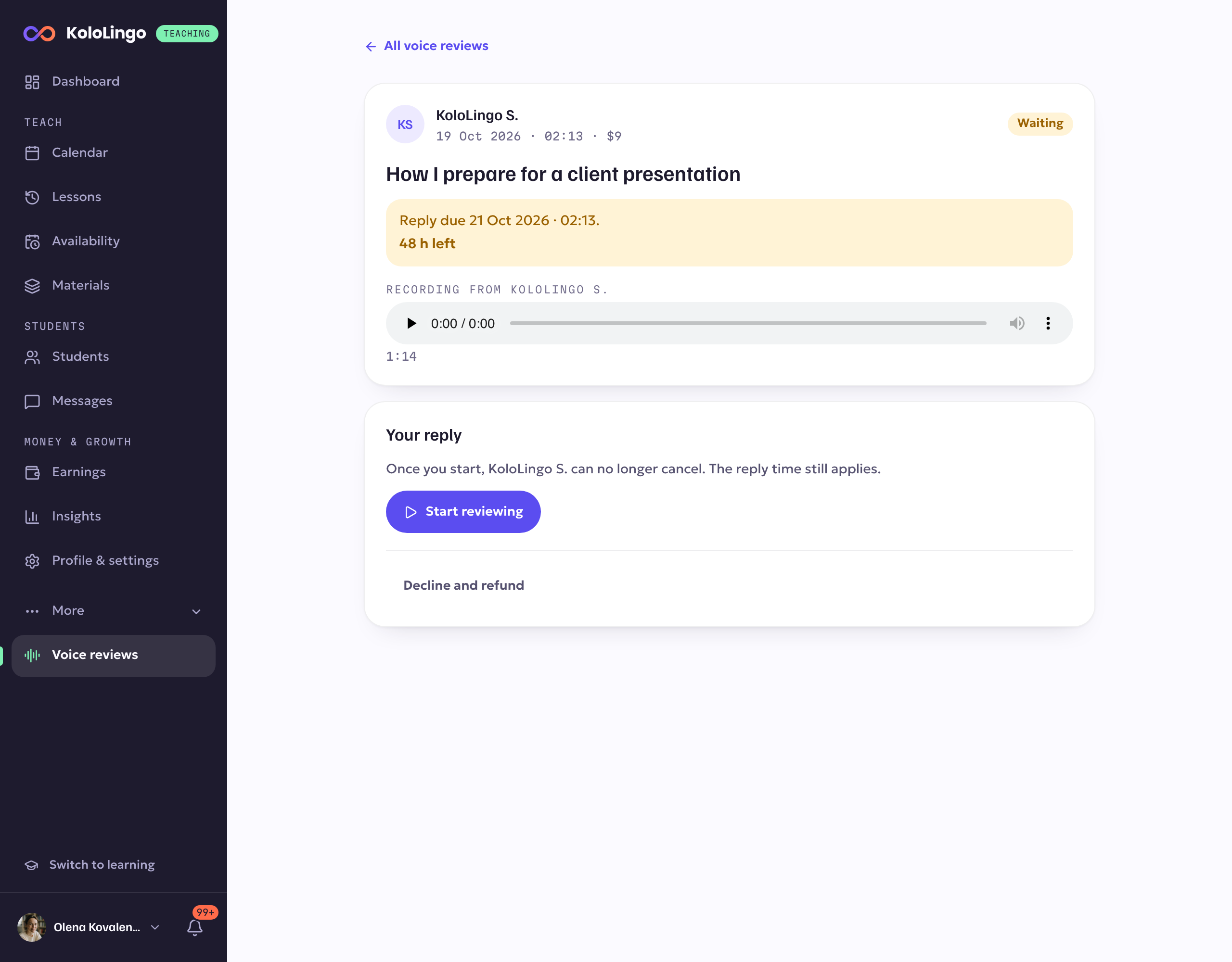
When you can't take one
Press Decline and refund and, if you like, tell the student why. They get the full price back.
The reply time
Every request shows when it's due. If the reply time passes before you send your review, the student gets their money back automatically and the request moves to Closed. A request also closes if the student cancels before you start.
Getting paid
When you send a review, its earnings are added to your balance in Earnings, the same way as a lesson: our commission and the payment processing fee come off, and the money becomes payable once the student's payment has cleared. A request that is cancelled, declined or not answered in time earns nothing, because the student is refunded.