What’s newFor teachers
How to message all your students at once
You can now write one message to all your students: a holiday, a schedule change, a new course, a reminder before exams. Each student receives it privately, in your normal conversation with them. When they reply, the answer comes back to you in that conversation, just like any other message.
How to send
- Open Students in your teacher menu and press Message all students.
- Choose who gets it:
- All my students: everyone who has booked you;
- Students with a lesson booked: only those with an upcoming lesson;
- Students from the last 60 days: your current students;
- Choose students: tick the people you want.
- Write your message (up to 2,000 characters) and press Send.
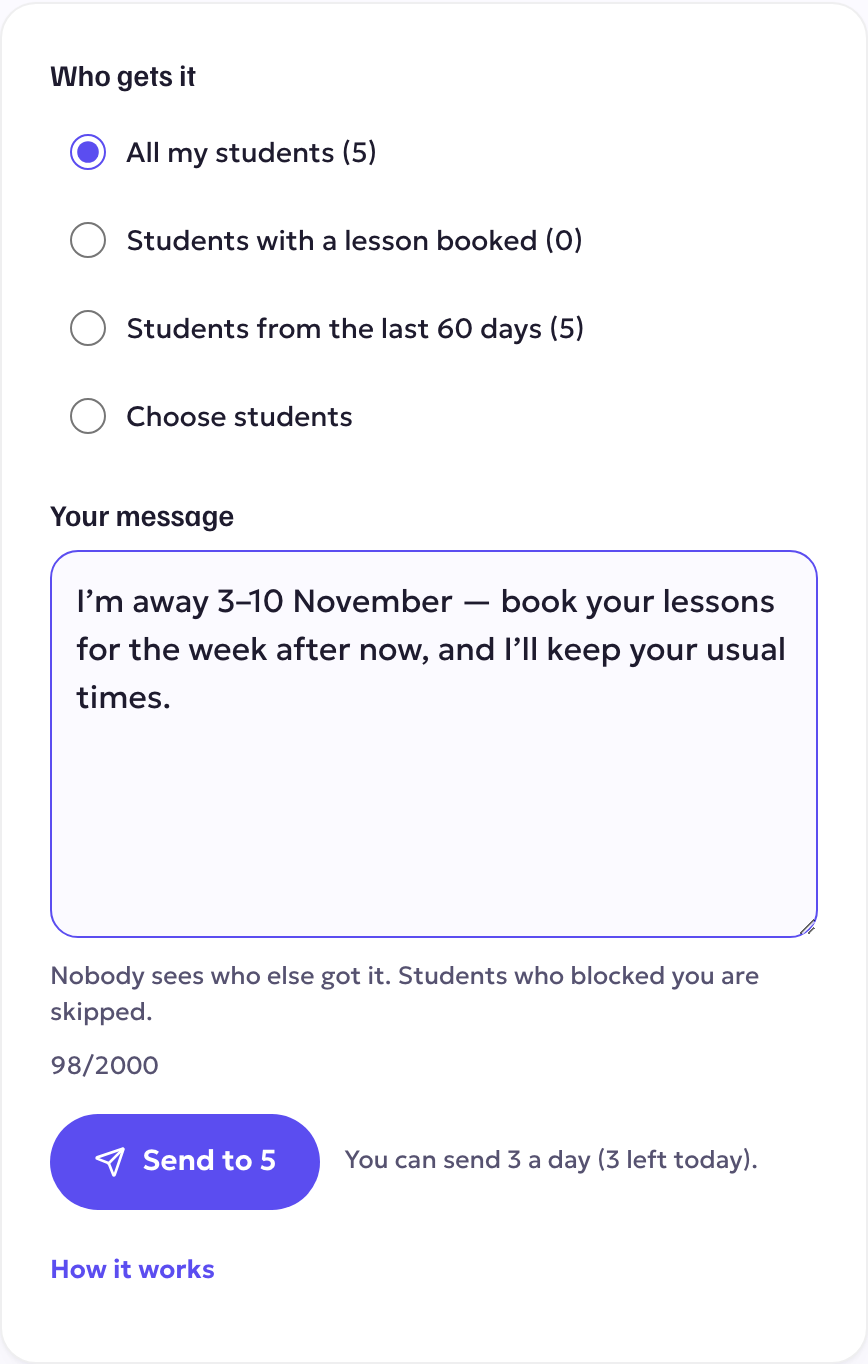
After sending you'll see how many students received it. If a message couldn't be delivered, for example because a student blocked you, you'll see their name.
Good to know
- It's private. No student sees who else got the message, and there is no group chat.
- Students get it like any message from you: in their Messages, with a notification.
- Three a day. To keep messages useful and not spammy, you can send three of these per day. Everything you've sent is listed under Sent before.
- On the app it works the same way, from the Students screen.