What’s newFor students
How to use the KoloLingo desktop app (students)
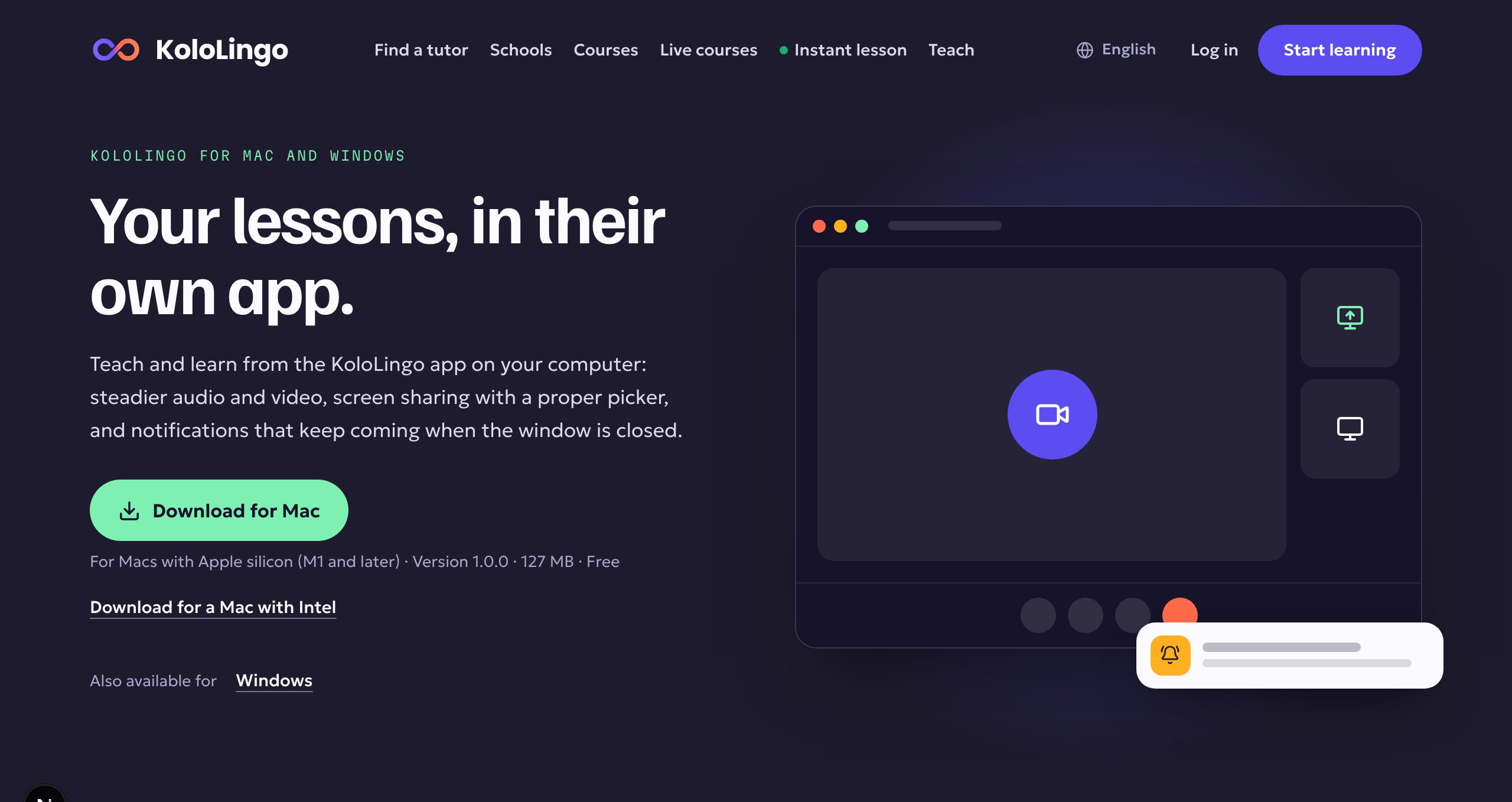
The KoloLingo app for Mac and Windows is KoloLingo on your computer, in its own window. Everything you use on the website is there, with the same account. It adds steadier lessons, easy screen sharing, and notifications that reach you even when the window is closed.
What's in it
- Everything you use on KoloLingo: your lessons, teachers, messages, courses, flashcards, learning notebook and wallet, exactly as on the website.
- Lessons in their own app. The browser cannot slow a lesson down when you switch to another window, and you hear your teacher as soon as you join.
- Screen sharing with a picker. If your teacher asks you to show something, choose a whole screen or one window from live previews.
- Notifications without a tab. Messages from your teacher and lesson reminders arrive as system notifications, and the app icon shows how many are unread, even with the window closed.
Where to download it
Open kololingo.com/download on your computer. The page offers the right file for it: a .dmg for a Mac (with separate files for Apple silicon and Intel Macs) or a Setup .exe for Windows. You can also get there from your account menu: click your picture at the top, then Desktop app.
Install it on a Mac
- Open the file you downloaded (KoloLingo … .dmg).
- Drag KoloLingo into the Applications folder.
- Open KoloLingo from Applications and sign in with your KoloLingo email and password.
The first time you open it, your Mac asks whether you want to open an app downloaded from the internet. Click Open. KoloLingo is signed and checked by Apple, so you only see this once.
The first time you join a lesson, your Mac asks whether KoloLingo may use the camera and the microphone. Click Allow.
Install it on Windows
- Open the file you downloaded (KoloLingo-Setup … .exe).
- KoloLingo installs itself in a few seconds and opens.
- Sign in with your KoloLingo email and password. From now on KoloLingo is in the Start menu.
KoloLingo is signed by Innovium ApS. While the app is new, Windows may still show "Windows protected your PC": check that the publisher is Innovium ApS, click More info, then Run anyway.
Signing in with Google or Apple
Click Continue with Google (or Apple) as usual. KoloLingo opens your web browser for that step, because Google does not allow signing in inside other apps. Sign in there, click Open KoloLingo, and the app opens again, signed in.
Sharing your screen in a lesson
- In the lesson, click Share in the bar at the bottom.
- A window opens with your screens at the top and each open window below.
- Click the one you want to show and click Share.
- Click Share in the lesson bar again to stop.
Notifications
- The app keeps running when you close its window, so messages still reach you. On a Mac it stays in the Dock; on Windows, next to the clock.
- A new message or reminder shows as a system notification. Click it to open that page in the app.
- To stop everything, quit the app: KoloLingo → Quit on a Mac, or right-click the KoloLingo icon next to the clock and choose Quit KoloLingo on Windows.
Updates
The app updates itself. To check by hand, use Check for updates in the KoloLingo menu (Mac) or the Help menu (Windows; press Alt if the menu bar is hidden).