What’s newFor teachers
How to create and review a learning plan with your student
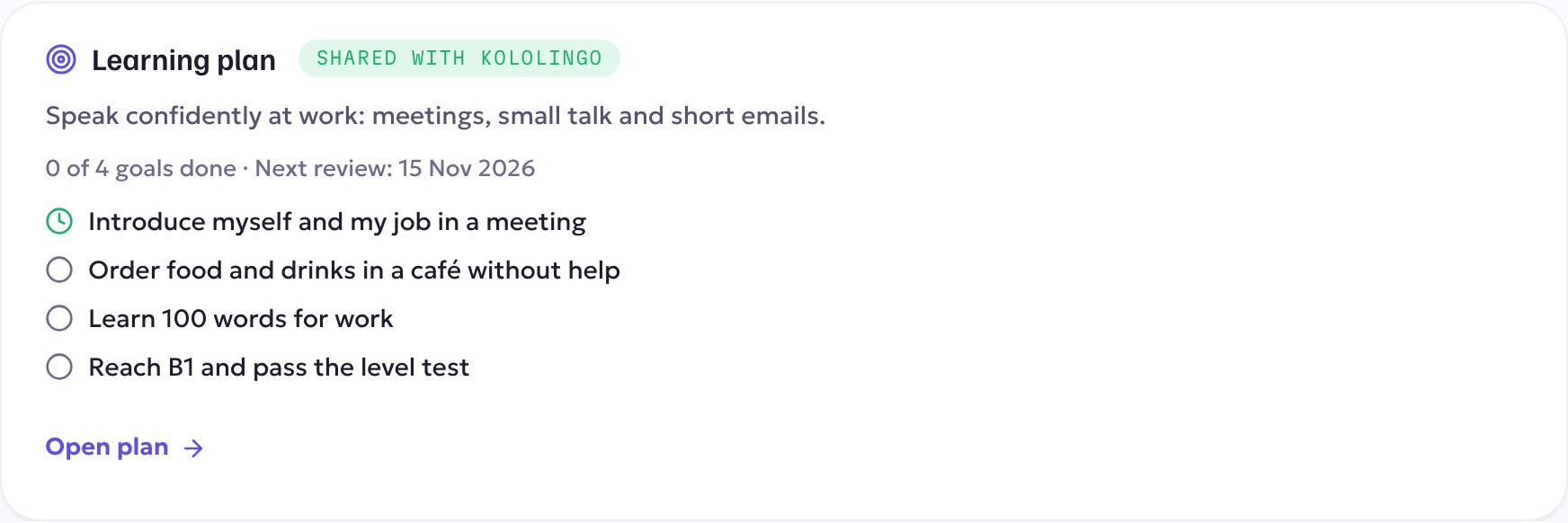
A learning plan puts on paper what you and your student agreed after the first lessons: why they're learning, where they are and where they want to get to, how often you meet, and the goals along the way. Your student sees it on their dashboard, and you both come back to it at regular reviews.
Create a plan
- After your first lesson with a student, open Students and choose the student. You'll see a Learning plan card with Create a learning plan. (You'll also get a reminder the day after a first lesson.)
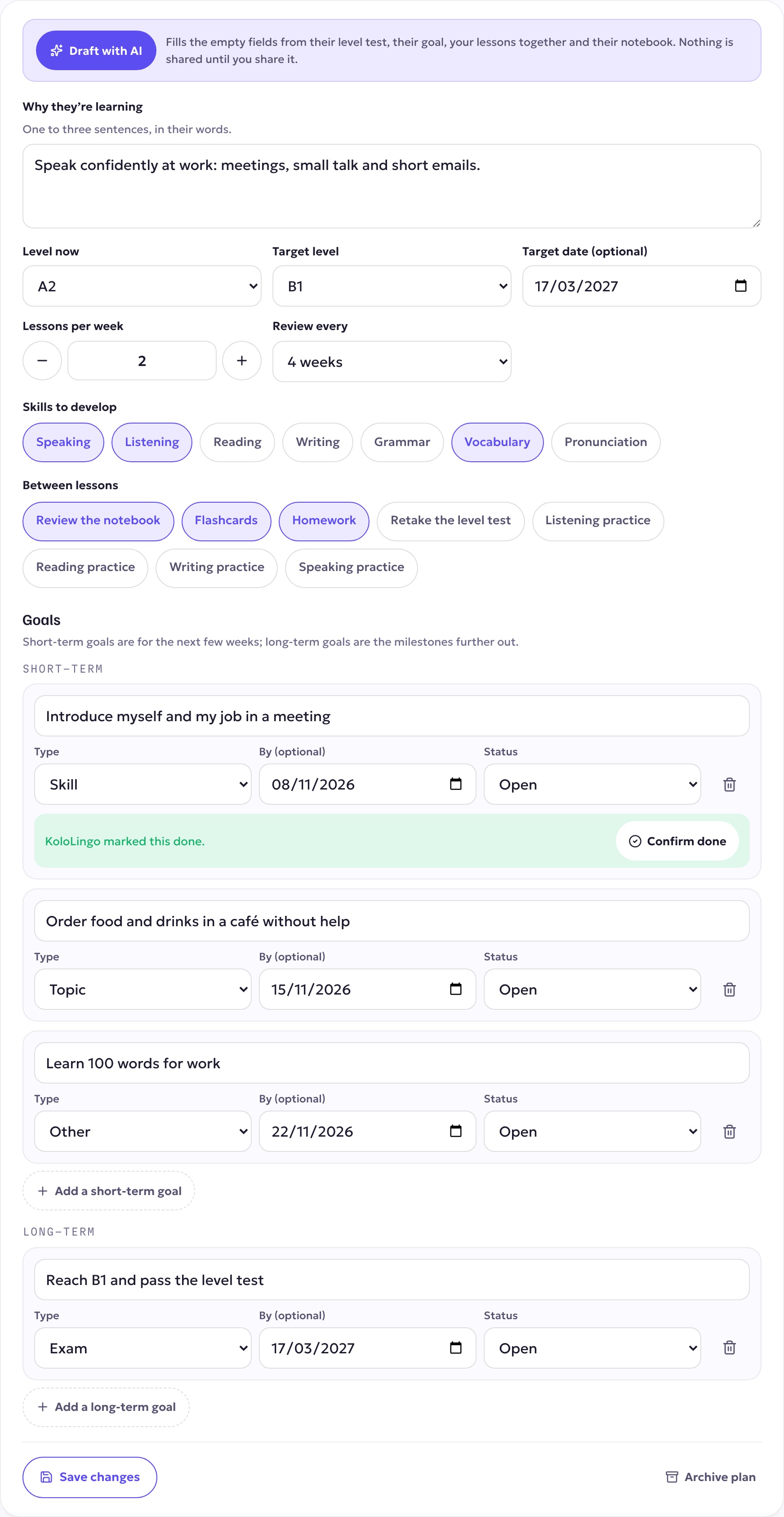
- Tap Draft with AI to get a first draft. It fills the empty fields from:
The draft only fills empty fields — anything you already wrote stays. If AI isn't available, you still get a simple draft built from the same information.- the student's level test (their level and their weakest skill),
- the goal they gave when they signed up (business, an exam, conversation…),
- your lessons together (the topics and the lesson documents you shared),
- their notebook.
- Edit everything:
- Why they're learning — one to three sentences, in their words.
- Level now and Target level (A1–C2), and a Target date if there is one.
- Lessons per week — what you agreed.
- Review every 4, 6 or 8 weeks.
- Skills to develop and Between lessons — tap to select.
- Goals: short-term goals for the next few weeks, long-term goals for the bigger milestones. Each goal can have a type (skill, exam, topic, other) and a date.
- Save draft keeps it to yourself. Nothing is shown to the student until you share it.
Share it
Tap Share with your student. They get a notification and an email in their language, and the plan appears on their dashboard as Your plan with you. The first review is scheduled for 4, 6 or 8 weeks later, as you chose.
You can keep editing a shared plan — your changes are visible to the student right away. Archive plan hides it from everyone; Restore as a draft brings it back.
When your student marks a goal done or comments
Students can tap Mark done on a goal and leave comments on the plan. You get a notification, and the goal shows "marked this done" with a Confirm done button — tap it and save to confirm. Comments appear in the plan's History.
Review the plan
When a review is due, you get a notification and Needs you on your dashboard shows it. Open the plan and scroll to Review:
- Lessons taken since the last review, against what the plan says,
- New notebook words,
- Goals done and still open,
- the level test result and, if they retook it, how their level changed.

Adjust the goals if needed, write a short note for your student ("What went well, and what to focus on next"), and tap Save review. The next review is scheduled automatically and your student is told their plan was reviewed.
Use the plan when you prepare a lesson
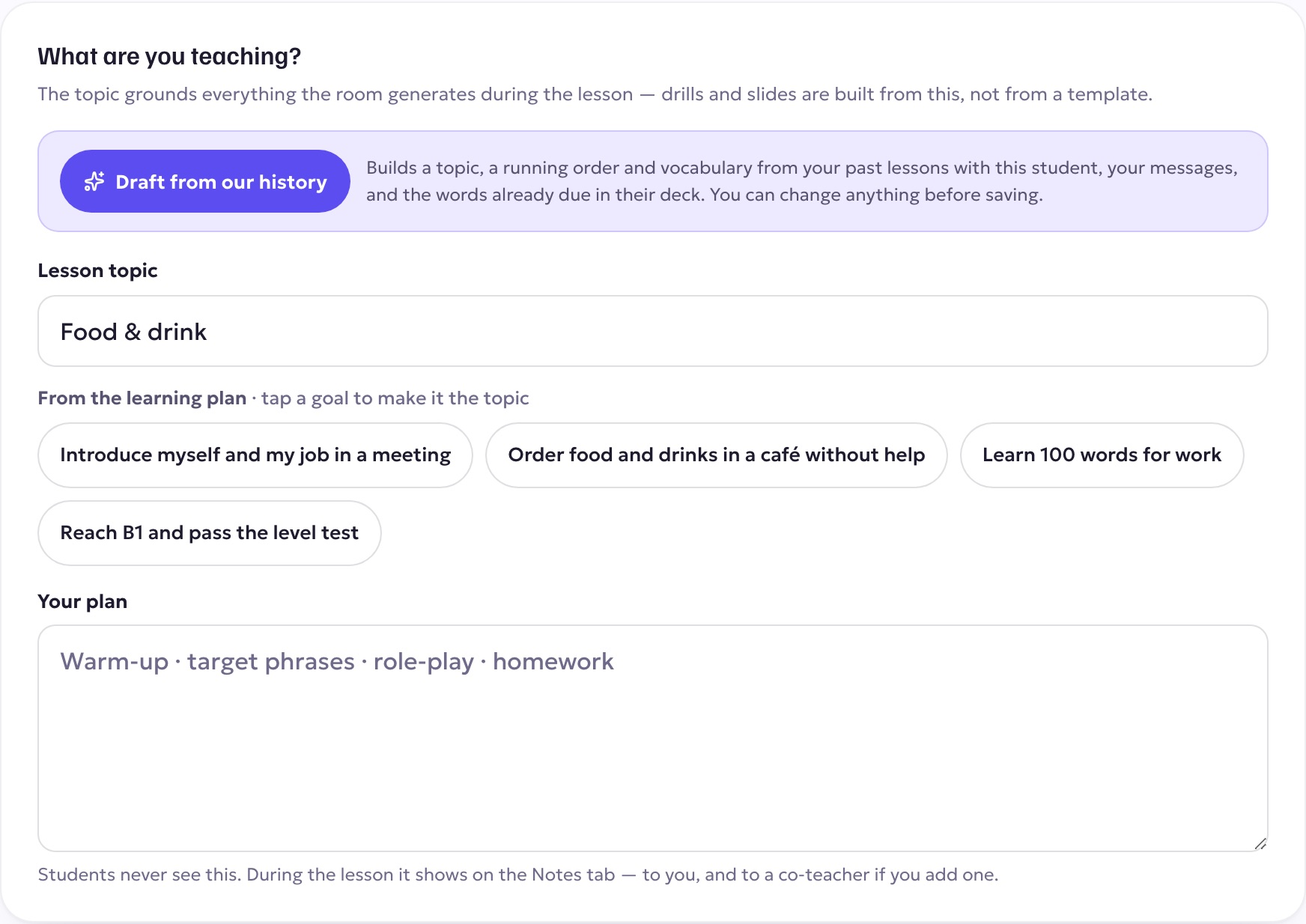
On a lesson's page, From the learning plan lists the open goals above What are you teaching?. Tap a goal to make it the lesson's topic.
Good to know
- Only you and your student can see your plan. If your student has lessons with other teachers, each teacher sees only their own plan.
- You can have one plan per student for each language you teach them.
- All plans you've written are under Learning plans (from Needs you, or at /teach/plans).