What’s newFor students
How to use My teachers, Book again and weekly lessons
My teachers keeps the people you learn with one tap away. Here is everything it does and where to find it.
Save a teacher
- Find a teacher in Find a tutor, or open their profile.
- Tap the heart next to their name (on a profile, tap Save next to Message).
- The heart fills in — they're now in My teachers. Tap it again to remove them.
You can also save your teacher on the screen you see right after a lesson ends: tap Save to My teachers.
Find My teachers
- On your dashboard, the My teachers card shows up to four teachers. See all opens the full list.
- From any page, open the menu (your picture, top right) and choose My teachers.
The teachers you saved come first. Below them, under From your lessons, are the other teachers you've had lessons with.
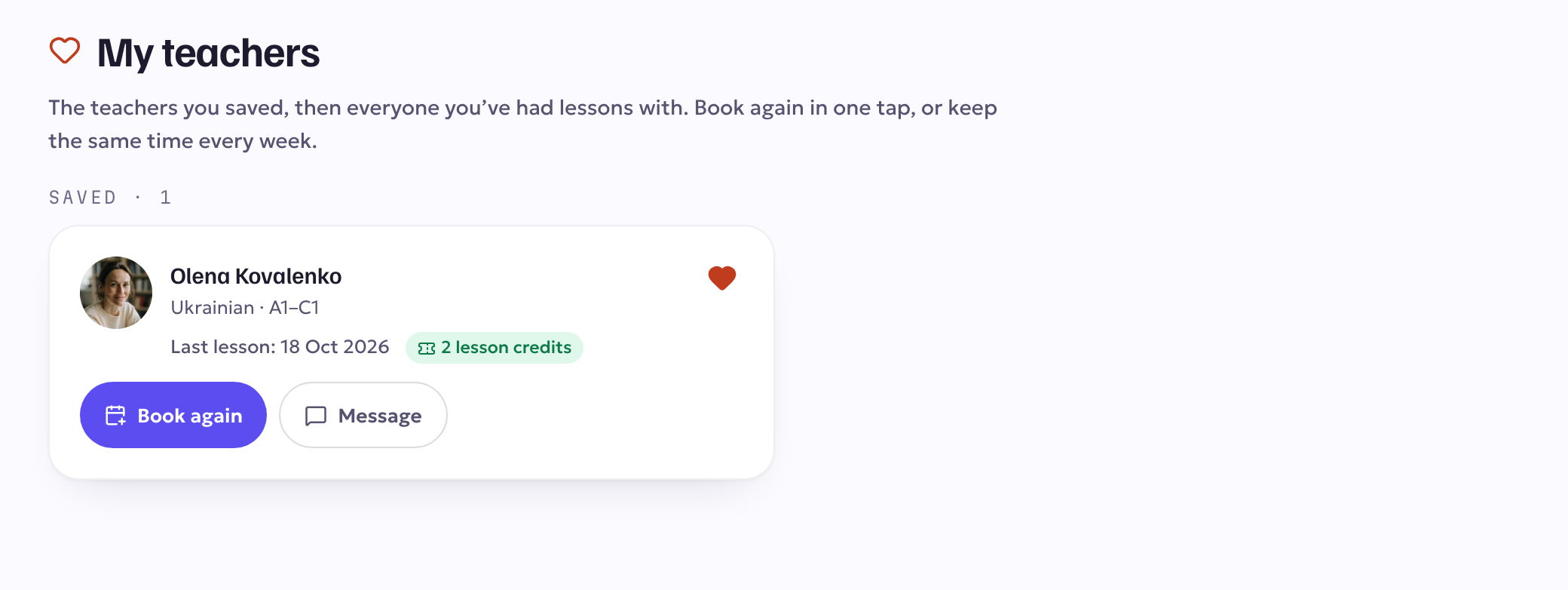
Each teacher shows:
- your next lesson with them, or the date of your last lesson;
- how many lessons you've had together;
- any lesson credits you still have with them.
Book again
Tap Book again. Their booking card opens on the same lesson length you took last time, with their next free times. Pick a time and book as usual: a lesson credit is used first if you have one for that length, otherwise the price is taken from your balance. Your teacher then accepts the request.
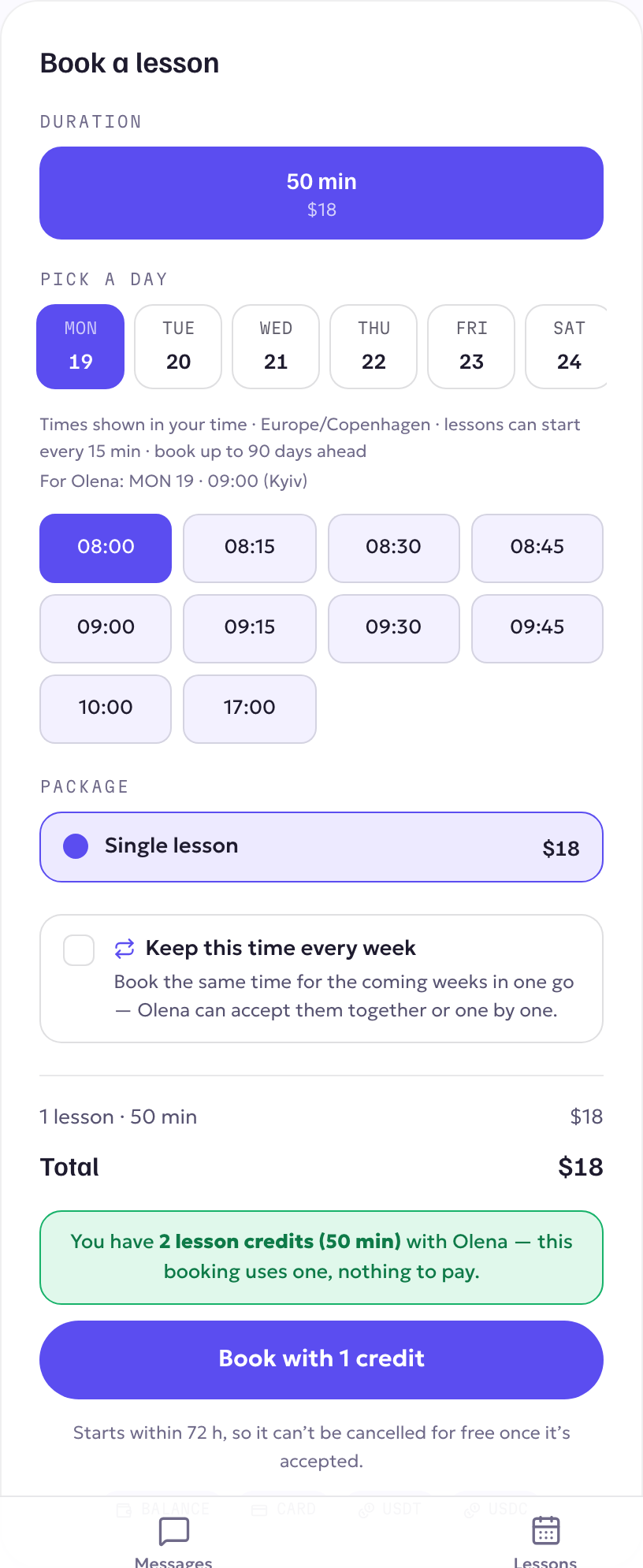
Keep the same time every week
Tap Same time every week (on My teachers), or Keep this time every week after a lesson.
- The booking card opens with the same weekday and time selected.
- Choose 4, 8 or 12 weeks.
- You see every week marked free or not available before you book. Untick any week you don't want.
- Confirm. Each week is an ordinary lesson: you pay for each one the usual way, and you can cancel or move any single lesson later.
Nothing is booked or charged until you confirm.
Turn an upcoming lesson into a weekly one
On Lessons → Upcoming, a lesson you've booked on its own shows Book this time weekly. It starts from the week after that lesson, at the same time.
Move a lesson
On your dashboard, tap Move next to an upcoming lesson. The time picker for that lesson opens straight away. The usual rules for moving a lesson apply (how much notice you need and how many times you can move it are shown in the picker).
Reminders to book your next lesson
If a week passes after a lesson and nothing is booked, we send you one reminder — a notification and an email with a Book again button. You never get more than one between two lessons, and never at night on your clock.
To switch them off: Account → Notifications → Reminders to book your next lesson, then turn off the channels you don't want (in-app, email, push).