What’s new
How to see your lessons in Google, Apple or Outlook Calendar
Your KoloLingo lessons can now appear in Google Calendar, Apple Calendar or Outlook next to everything else in your week. New lessons, moved lessons and cancellations update by themselves. This works for students and teachers. Teachers see both the lessons they give and the lessons they take.
Turn it on (once)
- Open Account (students) or Profile (teachers) and find Calendar sync. On the app, it's under Settings.
- Press Turn on calendar sync.
- Press the button for your calendar:
- Add to Google Calendar opens Google Calendar with the subscription ready. Confirm with Add.
- Add to Apple Calendar opens the Calendar app on your iPhone, iPad or Mac. Confirm with Subscribe.
- Add to Outlook opens Outlook on the web. Confirm with Import.
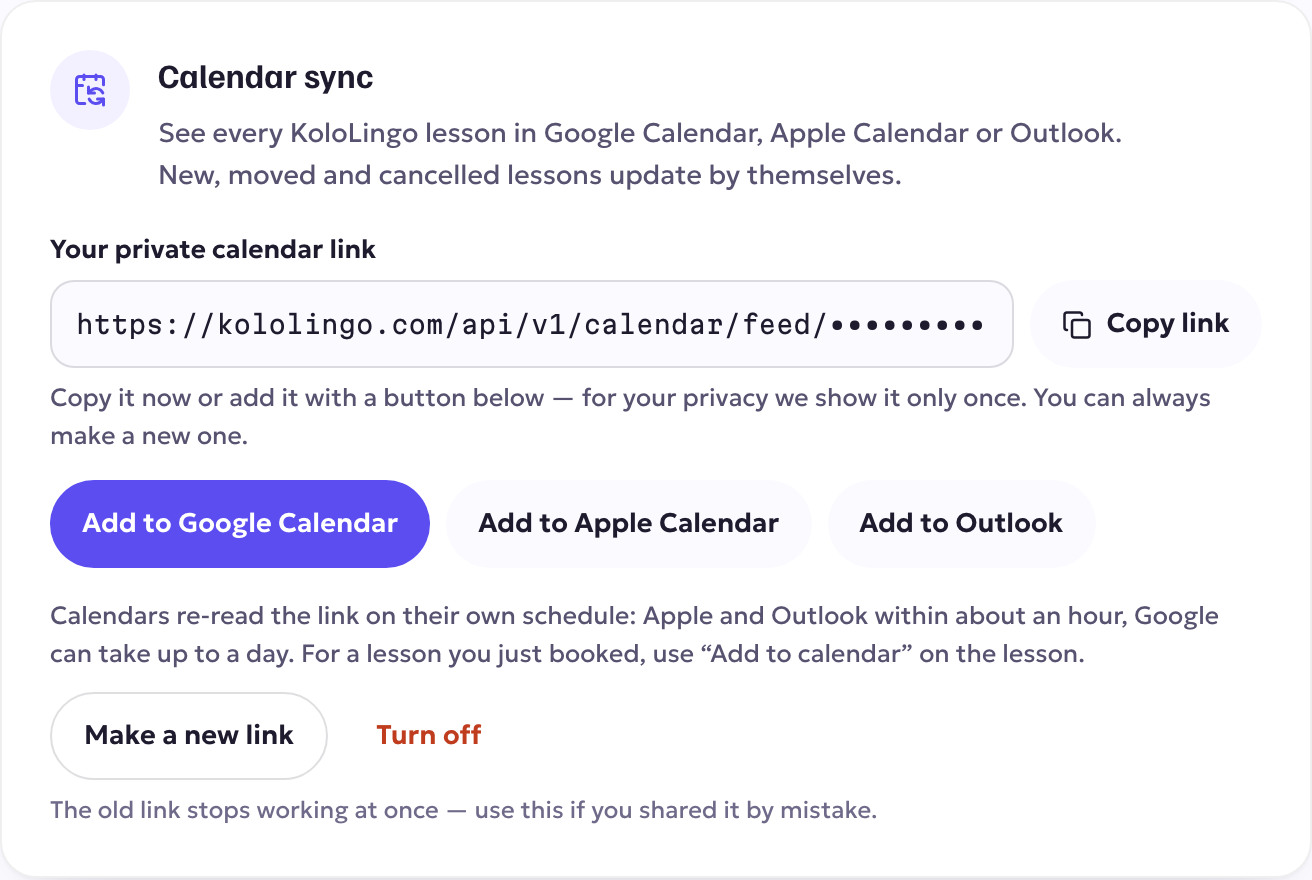
The link is private. For your privacy we show it only once, so add it right away, or copy it if you use another calendar app ("subscribe from a URL").
How quickly it updates
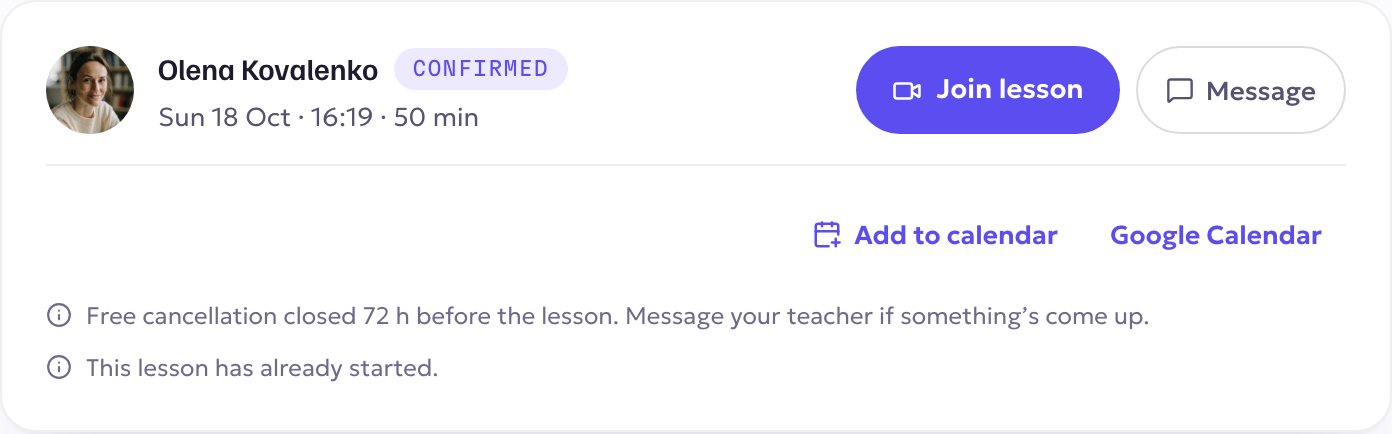
Calendars re-read the link on their own schedule. Apple Calendar and Outlook check about once an hour; Google Calendar can take up to a day. For a lesson you've just booked, use Add to calendar on the lesson itself: it goes in instantly.
Privacy and control
- Your calendar shows the lesson time, the other person's first name and the link to the lesson room. It never shows email addresses or phone numbers.
- Make a new link: the old link stops working at once. Use this if you shared it by mistake.
- Turn off removes the link completely.