What’s newFor teachers
How to use whiteboard templates
Templates give you a ready-made layout on the whiteboard in one click, so you can start explaining straight away instead of drawing boxes.
Where you find them
In a lesson, on the Whiteboard, press Templates at the top right, next to Clear. Pick one, and it appears in the middle of the board, for your student too.
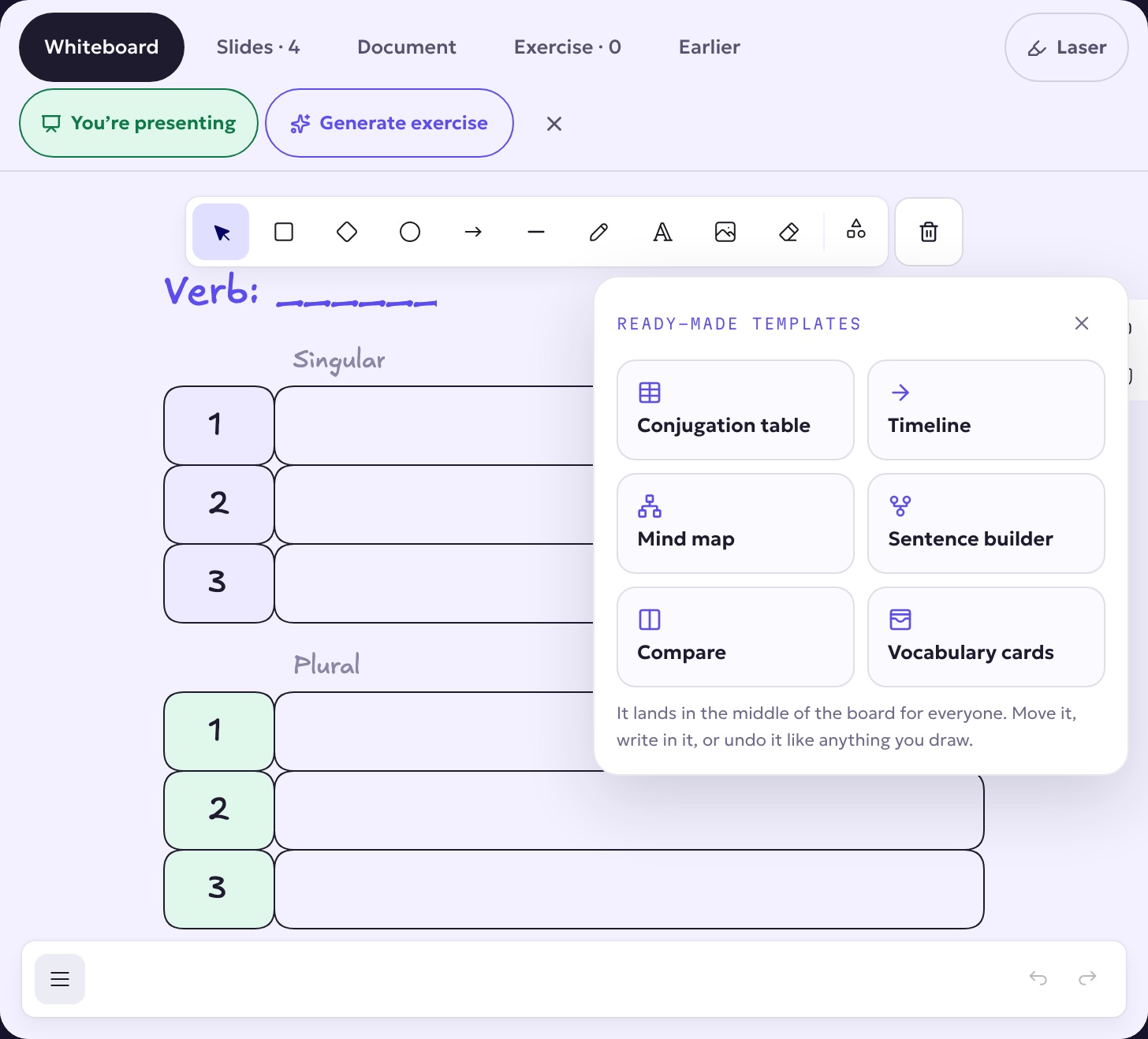
The six templates
- Conjugation table: "Verb: ____", then a singular and a plural block with rows 1, 2, 3. Write the verb and its forms.
- Timeline: past, now and future on an arrow, with two boxes for events. Good for tenses and stories.
- Mind map: a topic in the middle with six boxes around it. Good for vocabulary fields and brainstorming.
- Sentence builder: Who? → Does what? → What? → Where / when? Good for word order.
- Compare: two columns, Same and Different. Good for two tenses, two words, two cultures.
- Vocabulary cards: six cards with a word line and a meaning line.
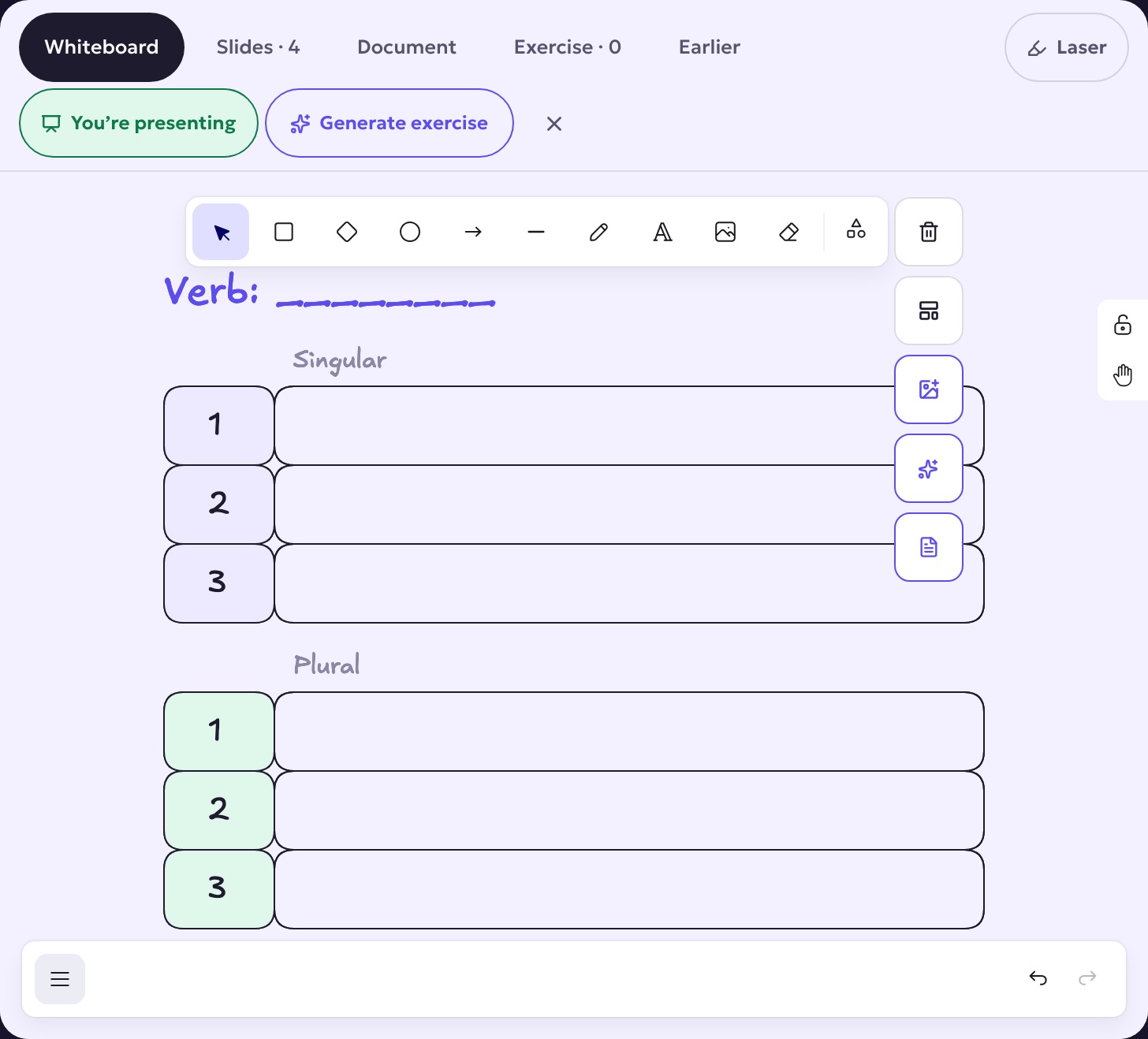
Working with a template
- Double-click any box to type in it, or use the text tool. Everything is an ordinary drawing: move it, resize it, recolour it, delete parts of it.
- Changed your mind? Undo (Ctrl+Z or Cmd+Z) removes the whole template at once.
- Your student sees everything you add as you add it. If they are following your view, the board shows them the same part you see.
- The labels (Singular, Past, Who?…) are in your own language. Write the content in the language you're teaching.